


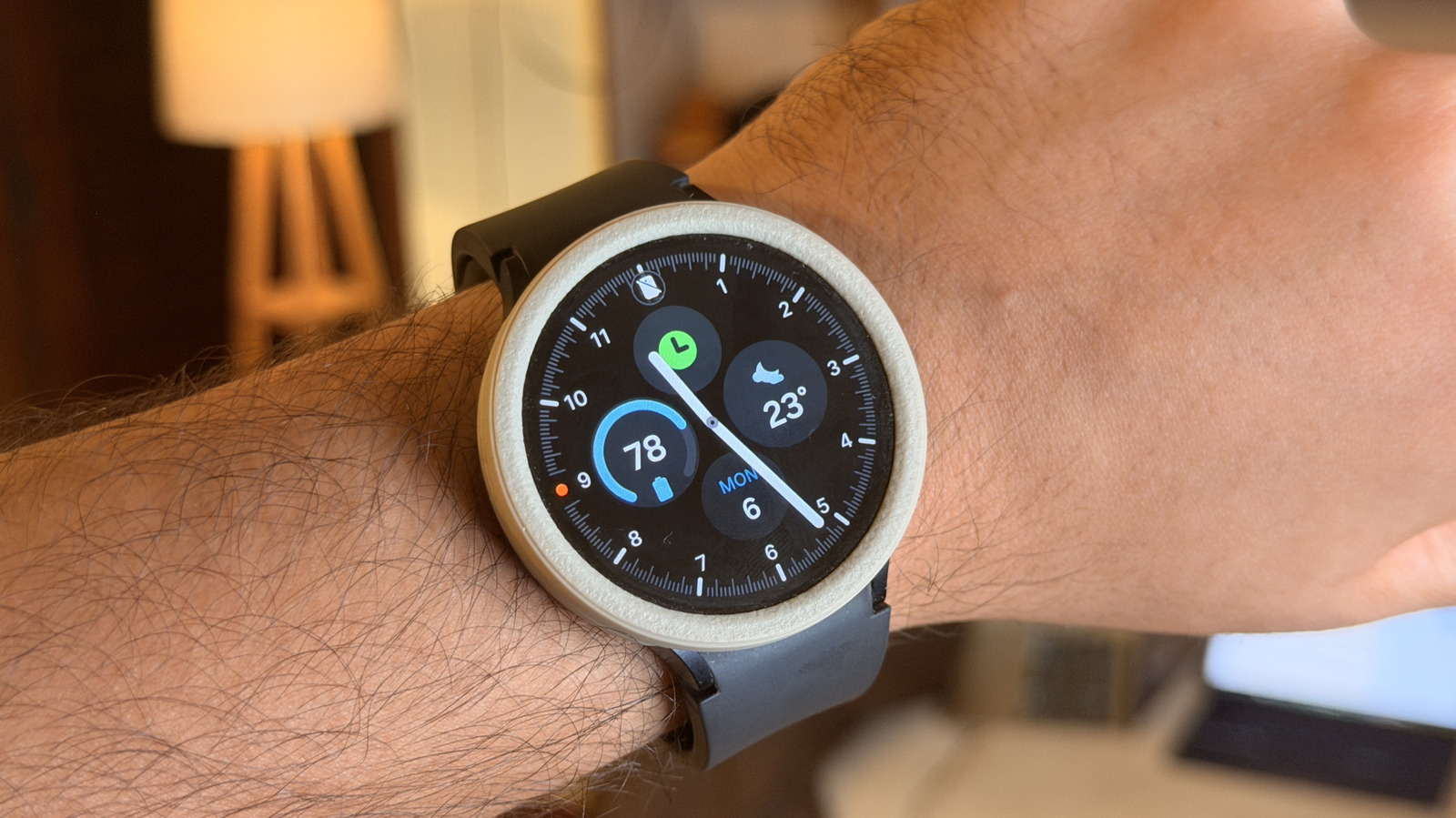
5 Tips For Max Battery Life On Your Samsung Galaxy Watch
By Sumukh RaoJuly 8, 2026 7:30 pm EST
When it comes to the best smartwatches one can buy on the Android side of things, the options usually boil down to the latest Google Pixel Watch and the Samsung Galaxy Watch. Both the Pixel Watch 4 and the Galaxy Watch 8 are solid options, and which one you pick can depend on factors such as whether you own a Google Pixel or a Samsung phone, design preferences, or even the type of UI. Samsung also offers a few more options, such as the Watch Classic and Watch Ultra series. Owing to this, you may decide to opt for a Samsung smartwatch. While the watch works well across scenarios, the one issue that plagues most Android watches — including the Galaxy Watch — is average battery life.
On most days, your Galaxy Watch may last you an entire day, but you’ll probably have to plug it in just before going to bed. Now, this isn’t ideal, as you may want to use the watch to track your sleep or set alarms. Fortunately, there are a few ways to improve and extend your Galaxy Watch’s battery life. Whether you want to wear it to bed or you’re traveling and are a few hours away from a charger, so you’re desperate to make the last 10% last for a few extra hours, here are some tips I’ve been using since the Samsung Galaxy Watch 4, and they work just as well on the latest Galaxy Watches as well.
Disable Always-on Display and Raise to Wake
Sumukh Rao/SlashGear
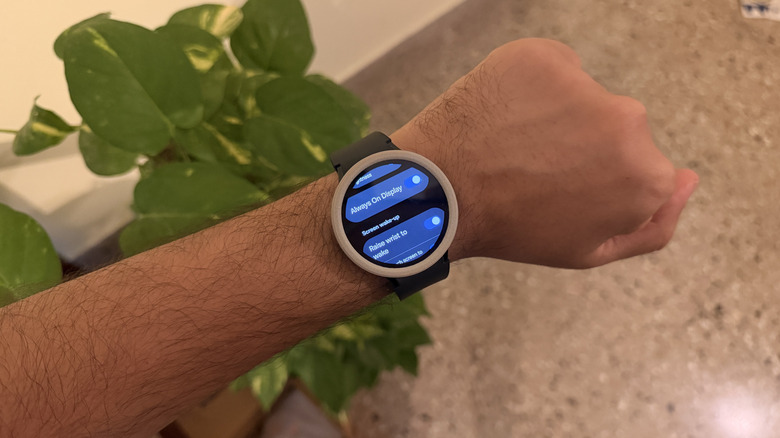
One of the most handy features that I absolutely love on all my smartwatches (and smartphones) is Always-on Display. The fact that you can simply glance at your smartwatch to check the time — just like a traditional watch — is super convenient. It also makes the watch look more classy, in my opinion. I would imagine that a lot of folks keep the feature turned on. Unfortunately, though, Always-on Display is among the most battery-hungry features on any device, let alone a smartwatch with a tiny battery. So if you’re in a situation where you want to conserve battery, or you know you’re going to have a long day ahead of you, it’s best to turn off the feature.
Head to Settings > Display > Always On Display and disable it. While you’re at it, there’s another feature on your Galaxy Watch that’s going to drain the battery faster — Raise to wake. The watch’s accelerometer detects every time you lift your wrist and turns the display on. This saves you the extra step of touching the watch’s display before performing a task. Again, while it’s extremely convenient, keeping the sensor running in the background consumes additional juice. From the same menu, turn off the Raise wrist to wake toggle. You can choose when to enable/disable these features based on situations where you want the watch to last longer or prioritize convenience.
Turn off ‘Hey Google’ detection
Sumukh Rao/SlashGear
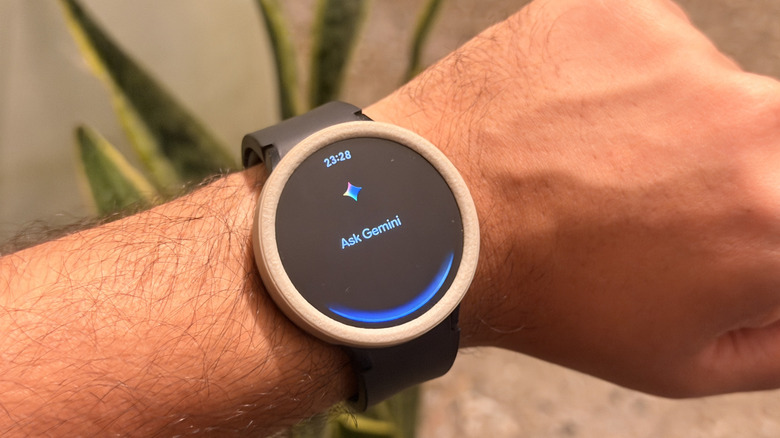
With AI becoming a widespread feature that pretty much everyone uses on every device out there, it’s not surprising for someone to use Gemini on their Galaxy Watch. After all, it is a helpful tool if you want to quickly set a reminder, check the weather forecast, or even call or message someone while your hands are occupied. One of the simplest ways to invoke Gemini is to bring the watch close to your mouth and use the trigger phrase “Hey Google.” While this is convenient, it drains the battery quickly because your watch stays awake the entire time to listen for the trigger phrase. That’s certainly not ideal when you’re trying to push the battery to its limits.
On days when I know I want my Galaxy Watch to last those few extra hours, I head to Gemini settings on my linked smartphone and turn off the ‘Hey Google’ detection on the smartwatch. Unfortunately, the native Gemini app on Wear OS doesn’t have the ability to turn off the feature, so you will have to use the connected phone. With the hotword disabled, you can still invoke Gemini by assigning one of the side buttons to open Gemini when you long-press or double-press it. You can also launch the Gemini app manually by swiping up from the watch’s home screen and selecting it from the app drawer.
Reduce heart rate monitoring frequency
Sumukh Rao/SlashGear
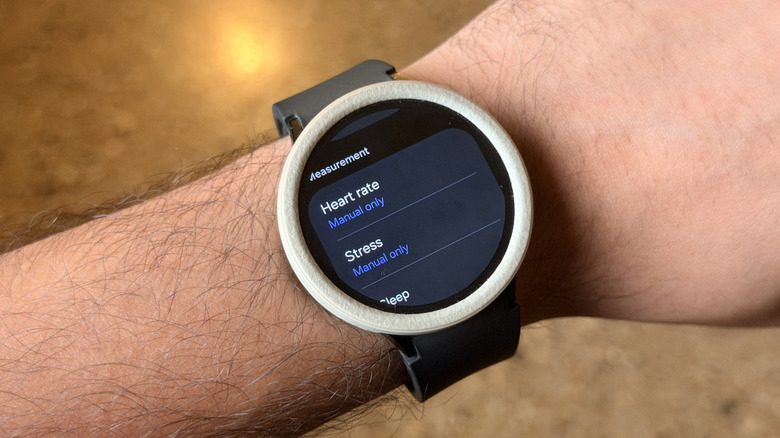
One of the primary reasons why most folks buy a smartwatch is for health tracking and monitoring. Keeping an eye on metrics, such as the number of steps walked and calories burned, is important if you’re looking to get into shape. Of course, you can also track workouts such as running, cycling, and swimming on the Galaxy Watch. Whether you’re working out or sleeping, there’s one metric that’s always being tracked when you wear the watch — your heart rate. Samsung allows you to track your heart rate via its smartwatches either continuously or at 10-minute intervals. While both of these options provide accurate heart rate data, they require the sensor to constantly run in the background, resulting in constant battery consumption.
If you want the best battery life out of your Samsung Galaxy Watch, what I do is set the heart rate measurement to Manual only. You can do this by opening the Samsung Health app and scrolling down to Settings > Heart rate. With this, your Galaxy Watch won’t automatically record your heart rate, which can skew your data if you’ve been tracking parameters such as stress levels and resting heart rate. However, that’s the trade-off you have to make if you want your watch to last longer. Alternatively, if your heart-rate monitoring setting is set to Measure continuously, you can change it to “Every 10 minutes while still” to save battery while still measuring your heart rate at frequent intervals.
Turn off LTE connectivity
Sumukh Rao/SlashGear
There are two types of Galaxy Watches you can buy — Bluetooth only, and Bluetooth+LTE. The Bluetooth variant should suffice for most use cases, since most folks carry their smartphone along with them at all times. For context — the Galaxy Watch connects to your smartphone via Bluetooth. This is how it connects to the internet, syncs data to your phone, and shows you notifications and incoming calls on your wrist. However, for this to work, your watch must always be in Bluetooth range of your smartphone. But what if you go to the gym or run every morning without your phone? You won’t be able to receive calls, respond to messages, or perform any other activity on your watch that requires a network connection.
This is where the LTE version comes in handy. Since it has an independent eSIM, you can use the watch even if you’re not around your phone. While it’s extremely useful, the fact that your watch has its own radios means that it’s constantly searching for a network, leading to higher battery drain. The trade-off may be worth it for a lot of people. On days you want to prioritize endurance, it’s best to turn off LTE connectivity. Head to Settings > Connectivity > Mobile networks, and change the setting to Always off. If you want to stay connected and yet want the watch to consume less battery, switch to the Auto option instead of the Always-on one.
Enable power saving mode
Sumukh Rao/SlashGear
How long a Samsung Galaxy Watch lasts depends entirely on your usage patterns throughout the day. If you’re tracking a workout for an hour with all the sensors running in the background, answering multiple calls on your watch, and interacting with several apps via the watch’s display, the watch is bound to drain the battery faster. Of course, you can use all the tips mentioned above to increase the standby time, but they may not do much if your usage is on the higher side. For such users, the best way to keep the watch running for a longer duration is to use the Power Saving feature. Drag the quick settings section down from the watch face, then find the power-saving menu, represented by a battery icon with a leaf.
Once you enable it, your Galaxy Watch automatically turns off all the features that consume more battery. Along with that, it also decreases the display brightness and screen timeout durations; limits the CPU performance, background network usage, location tracking, and data syncing, plus, you also get the option to limit health tracking features. On the power-saving mode screen, you can even see how long your smartwatch will last with the mode enabled vs. without it. I generally use this as a last resort when my watch is running drastically low on power, and I know I’m at least a few hours away from a charger.
